Ultimate TV Solutions
ONN App Upgrade Guide
Watch the tutorial, or use the photo guide below. Keep your current app installed until the new app is signed in and working.
How to Upgrade Your ONN / Google TV App
Step-by-step photo guide
For ONN / Google TV devices. Screen wording may vary slightly. Have your remote ready and follow one step at a time.
- 01
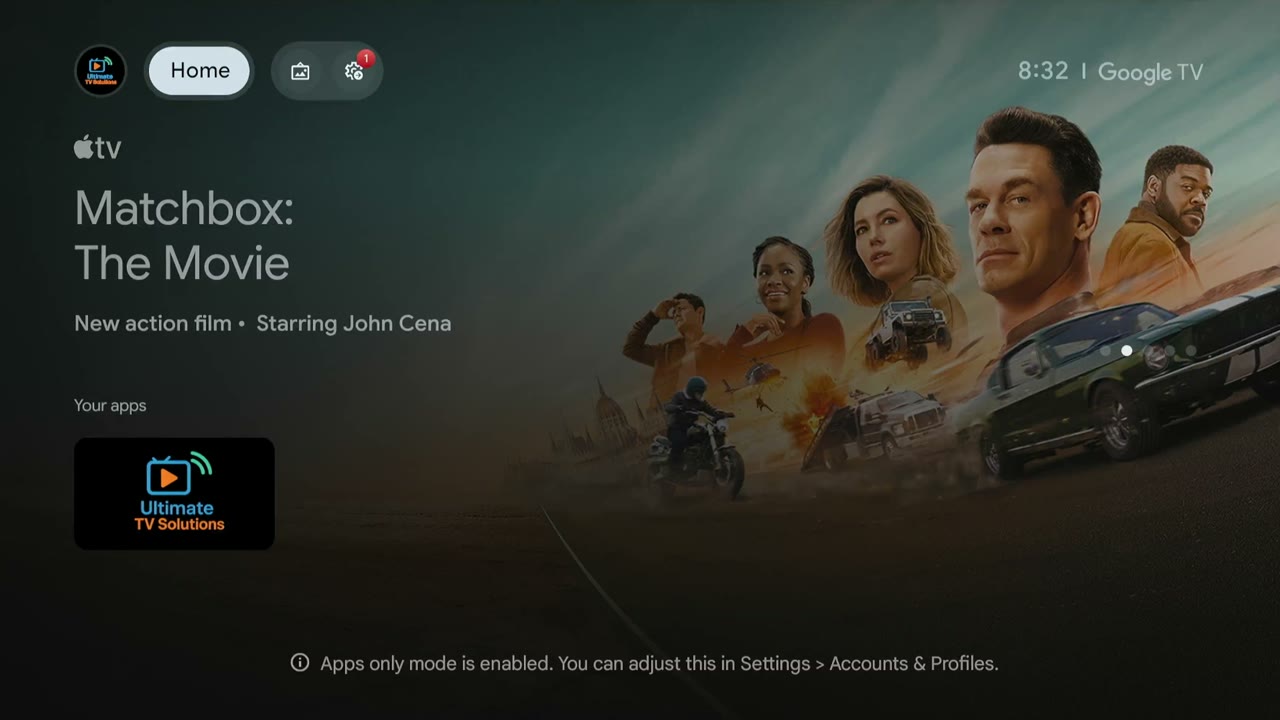
Open your profile
On the ONN home screen, select your profile picture in the upper-left corner.
Tap the photo to open a larger version. - 02
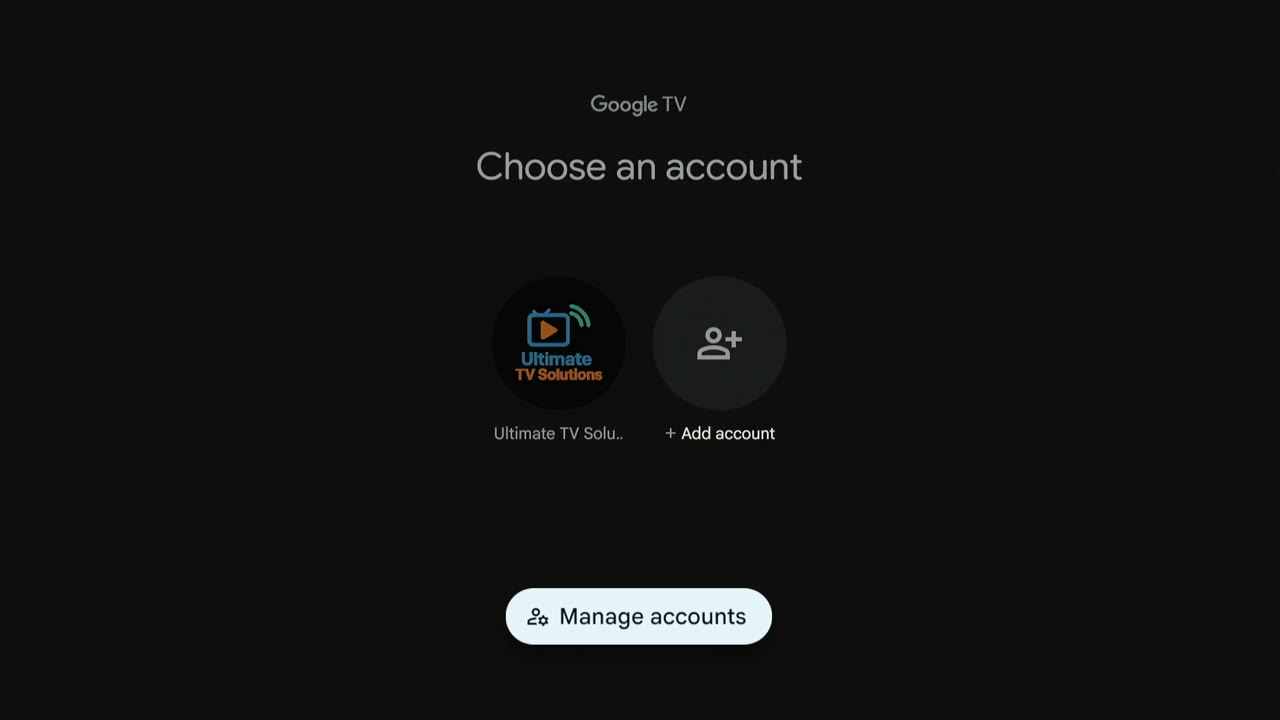
Choose Manage accounts
Select Manage accounts. Some devices call this Manage profiles. Choose your current profile; you do not need to remove or add an account.
Tap the photo to open a larger version. - 03
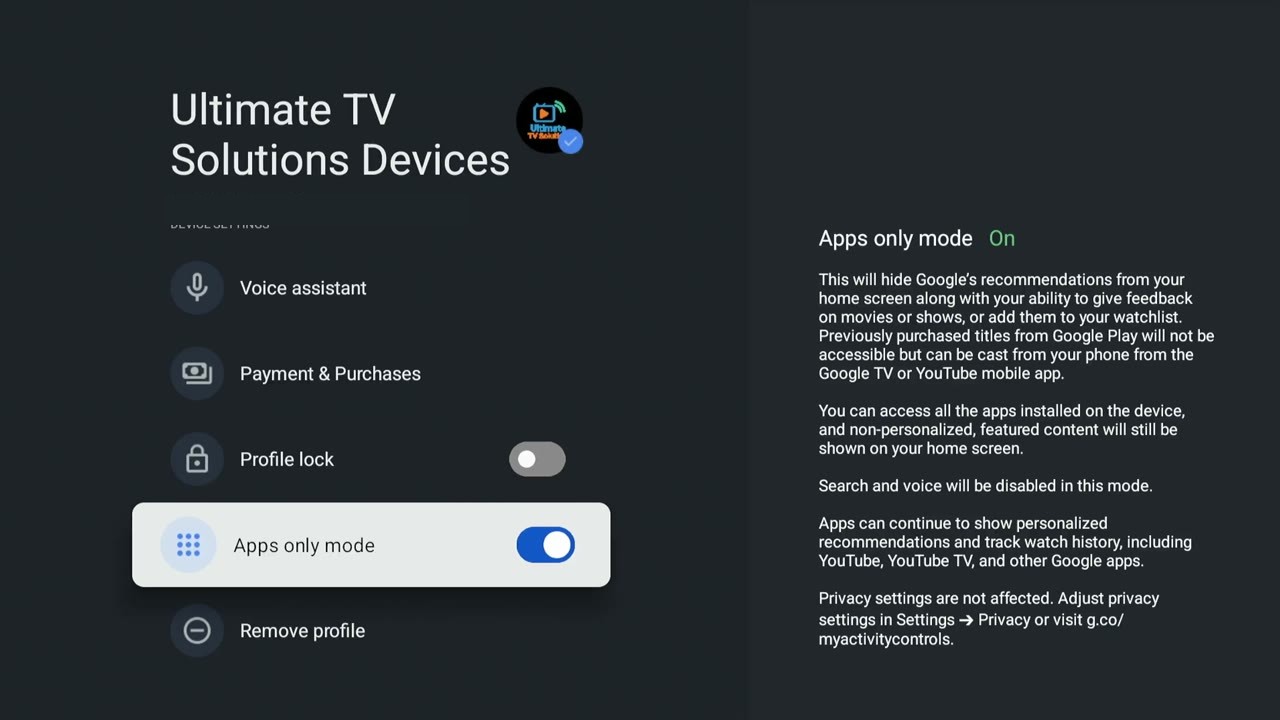
Turn Apps-only mode off
In your profile settings, select Apps only mode and turn it OFF. If it is already off, leave it off. Return to the home screen.
Tap the photo to open a larger version. - 04
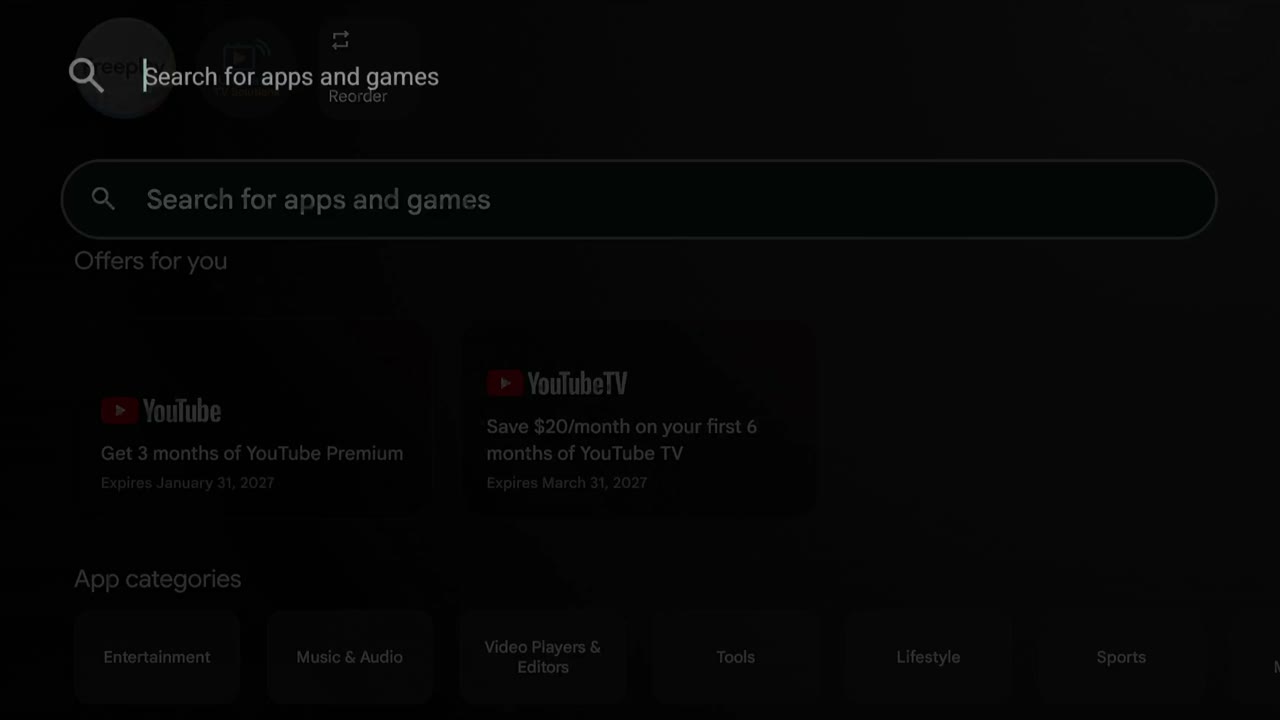
Search for Downloader
Select Search at the top of the home screen. Type Downloader, or use your remote’s microphone to say it.
Tap the photo to open a larger version. - 05
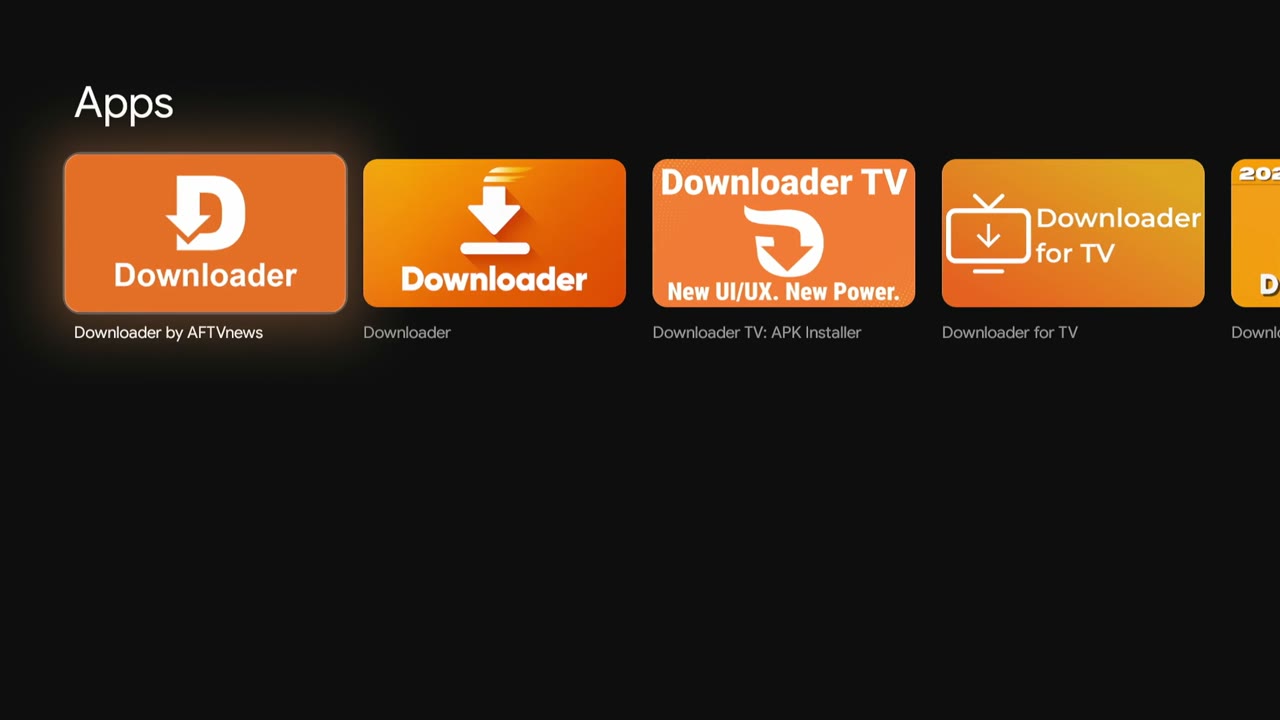
Install the correct Downloader app
Choose Downloader by AFTVnews—the orange icon with the white arrow. Select Install, wait for it to finish, then select Open.
Tap the photo to open a larger version. - 06
Enter the download code
In Downloader, select the address bar and enter 2723730. Check all seven digits, then select Go or Load. Wait for the redirect and download to finish, then select Install.
2723730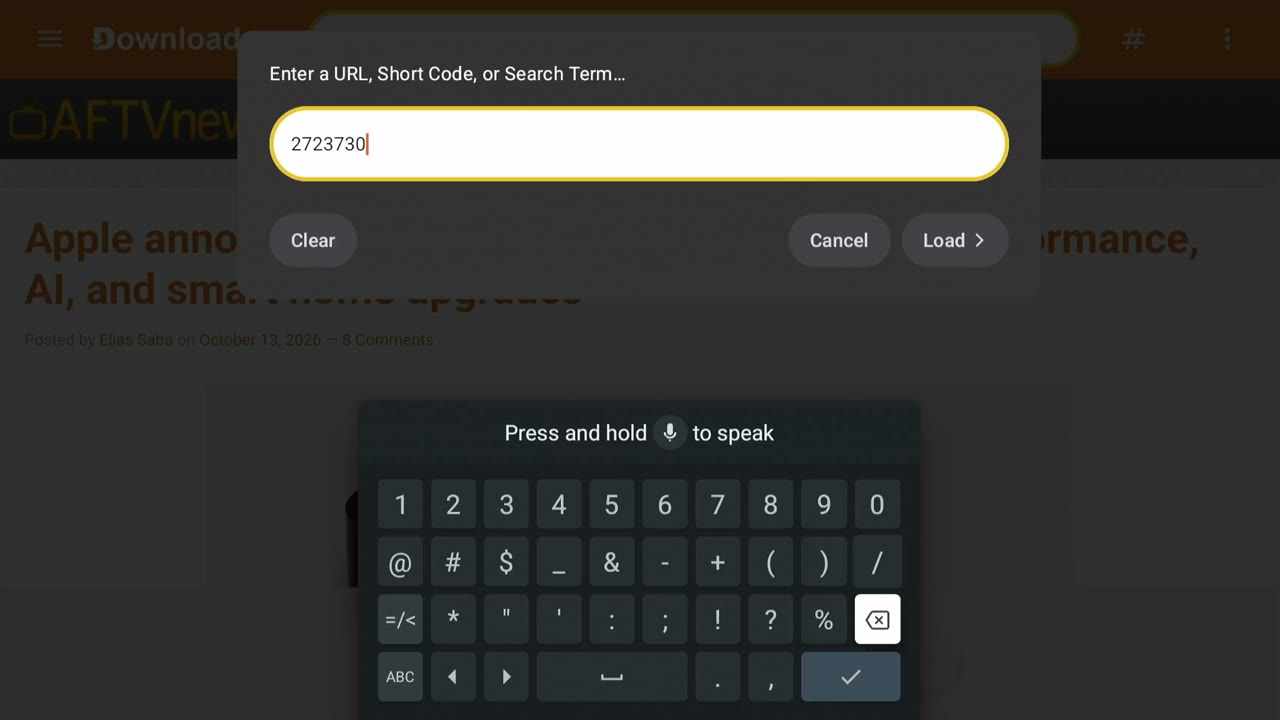
Tap the photo to open a larger version. - 07
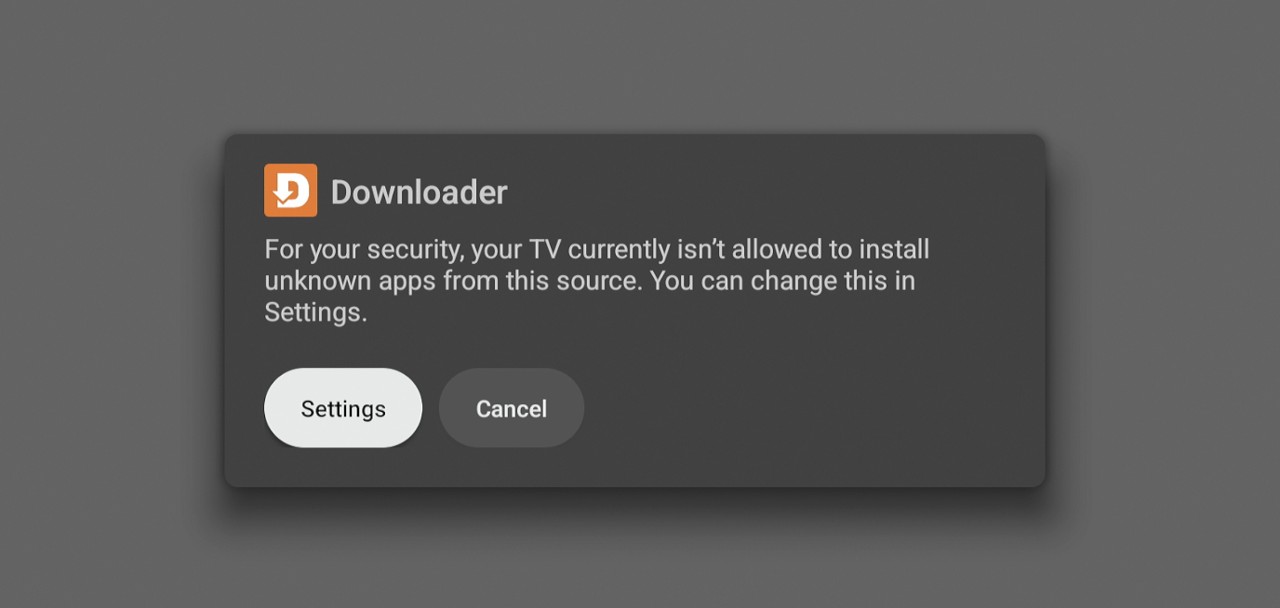
Open installation settings
If your TV says Downloader is not allowed to install unknown apps, select Settings.
Tap the photo to open a larger version. - 08
Allow Downloader, then install
On Install unknown apps, select Downloader and turn its permission ON. Return to the install prompt and select Install for Ultimate TV Solutions. If that prompt does not return, go back to Downloader and select Install again.
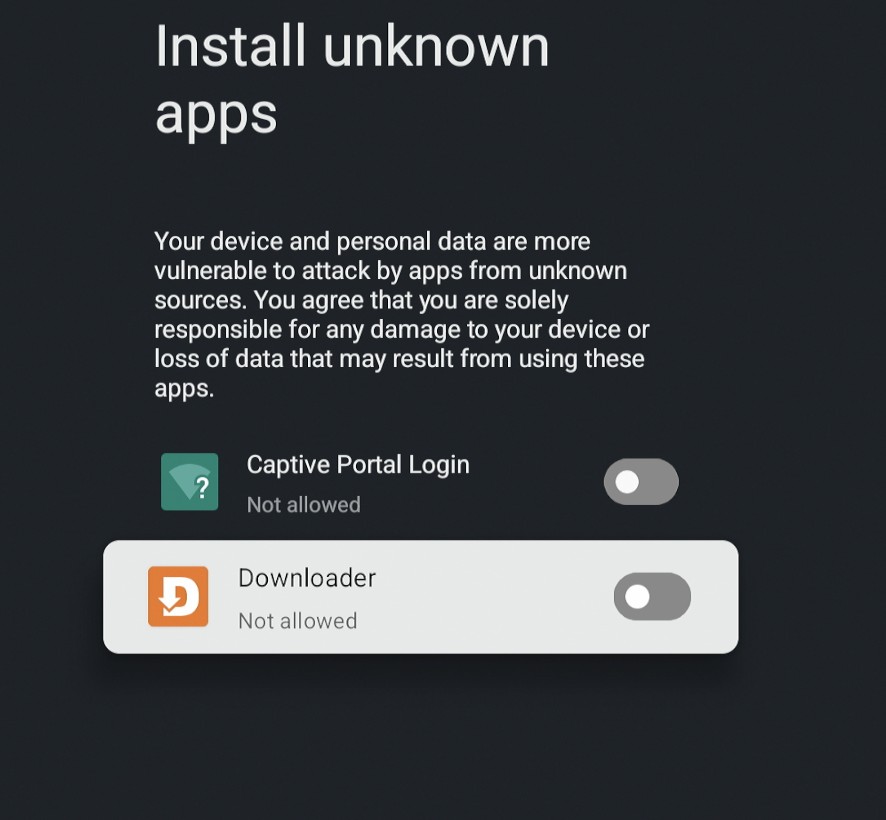
Tap the photo to open a larger version. - 09
Open the app and choose Add playlist
When installation finishes, select Open. On the Ultimate TV Solutions welcome screen, choose Add playlist.
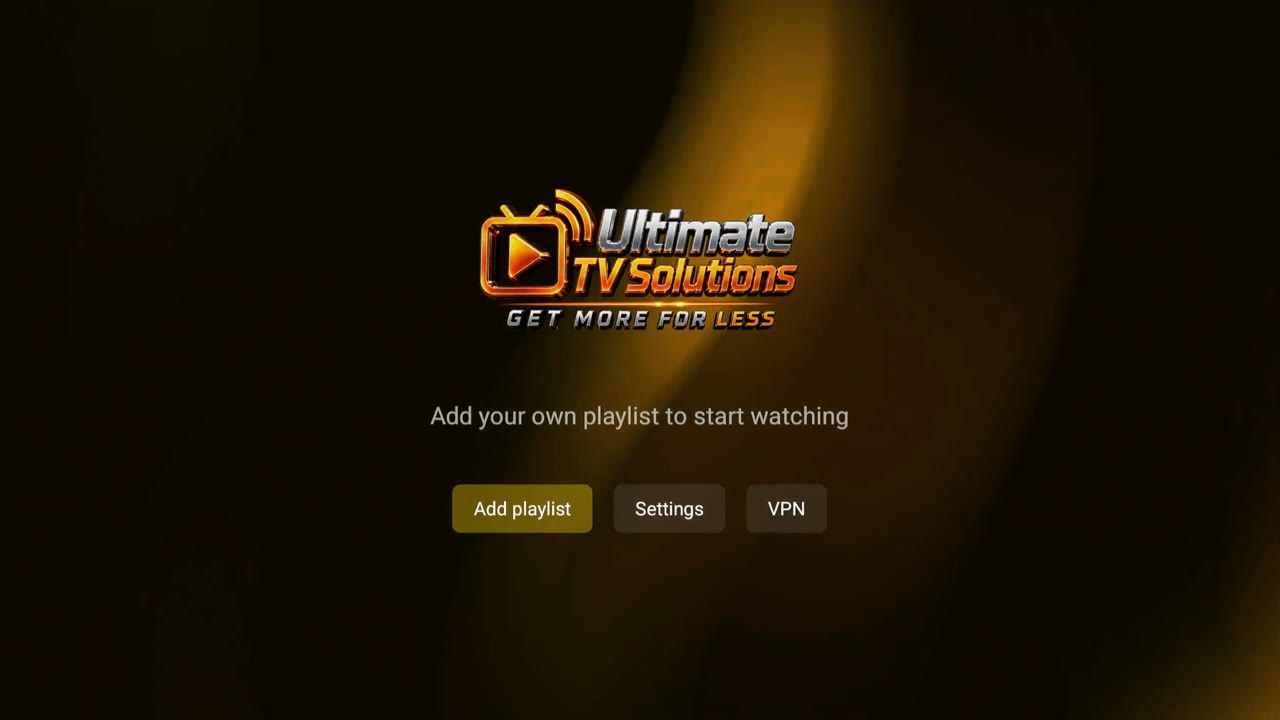
Tap the photo to open a larger version. - 10
Send us your Service screen
Take a clear photo of the Service screen and send it to Ultimate TV Solutions support. Include the complete MAC address at the bottom—the letters and numbers separated by colons. Every device has its own MAC address. Send yours, not the example below. Your device may say Waiting for provider until support activates it.
SEND YOUR PHOTO TO SUPPORT ↗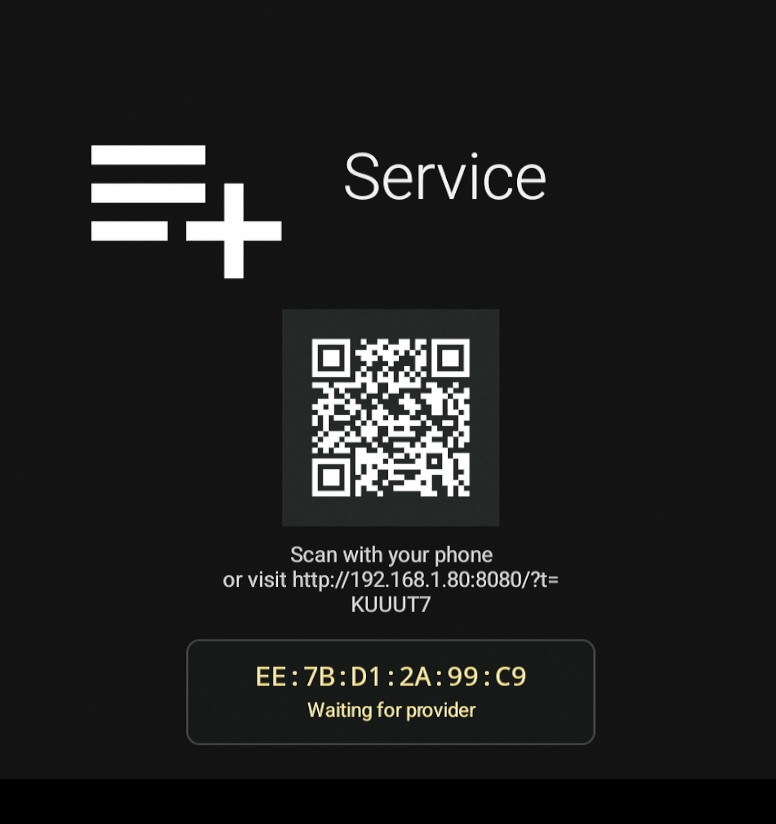
Example only — send a photo of your own device’s Service screen.